Extract the relevant events from the PDF into a clear list, check dates and times, then add them through your calendar’s supported entry or import method. A PDF itself is not a calendar subscription.
Check whether the school already provides a calendar
Before copying a term of dates, look for the school’s official calendar feed or subscription link. If it exists and covers the right group, it may be easier to maintain than a one-time import. Check whether school updates will flow through to the calendar you are using.
Create a small event table first
Read the PDF for the actual event fields, not just every number that resembles a date.
| Field | Check |
|---|---|
| Event name | Is this a date your household needs? |
| Date and year | Does it belong to this school year? |
| Start and finish | Is it timed, all-day or a deadline? |
| Location | Does the notice name a different venue? |
| Applies to | Which class, child or activity? |
Choose entry or import based on the size of the job
For a handful of events, adding them individually can be easier to check. For a longer list, prepare a supported ICS or CSV file after checking the extracted dates. In Google Calendar on a computer, open Settings, then Import & export. Select the file, choose the destination calendar and import. Check the resulting events before sharing the plan. A raw PDF cannot go through this import step.
A one-time import copies events. A subscribed calendar follows a feed. Keep that distinction in mind when the school is likely to change its dates.
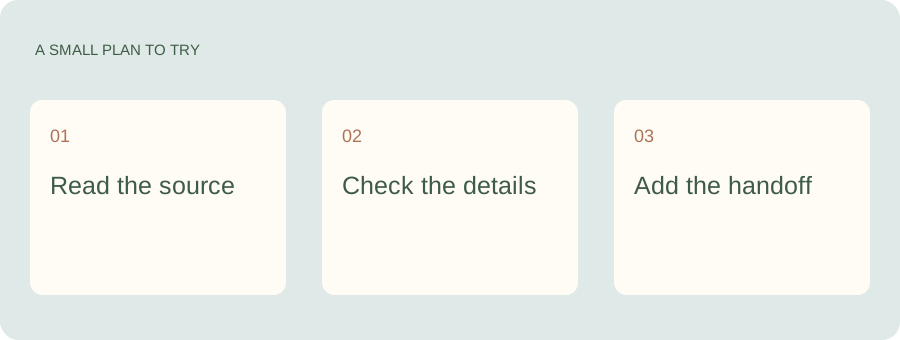
Take the useful dates into Kaia.
Once you have the relevant dates from the PDF, give Kaia the school plans and preparation tasks to help organize the family week. Keep the original notice handy when checking details or handling a later change.
Test one event before importing a term
Check the title, all-day behavior, time zone and end time in a small sample. This catches a format problem before it becomes dozens of entries. Keep the imported events in a clearly named calendar where practical so you can see what was added.
Avoid adding the same dates twice
Check whether the school feed, another parent or a previous import already added the events. Two entries with slightly different names can be hard to recognize as duplicates later. Note where the dates came from and when you added them.
If you use Kaia to help organize the document, give the task and relevant school context, then check the resulting dates before treating the whole list as complete.
Put deadlines beside the events, not inside a forgotten paragraph
Permission, payment and equipment deadlines deserve their own tasks. A trip entered on the correct day will not remind somebody to return the form a week earlier unless that preparation has its own place.
See a worked family example
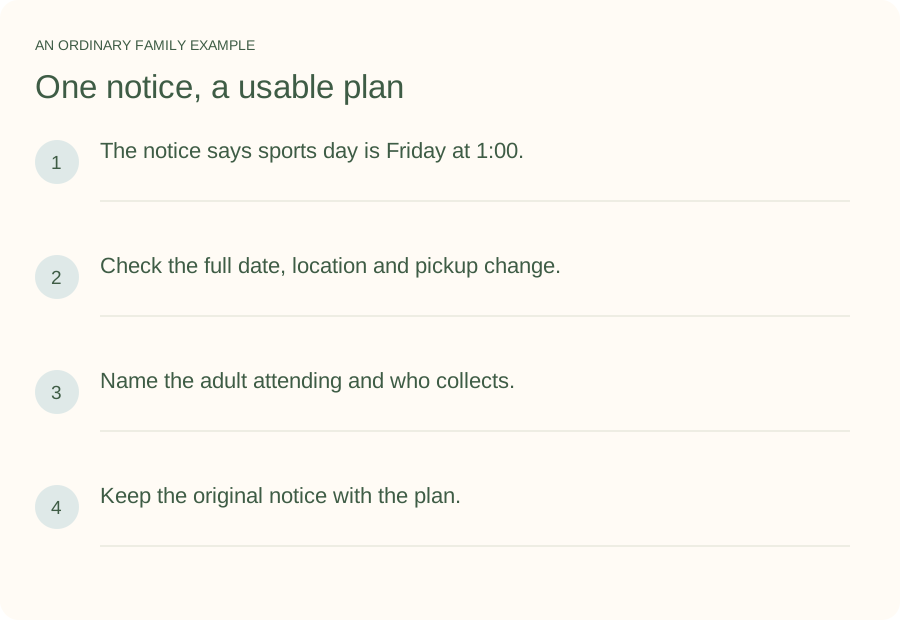
Illustrative household example; adapt the names and details to your week.
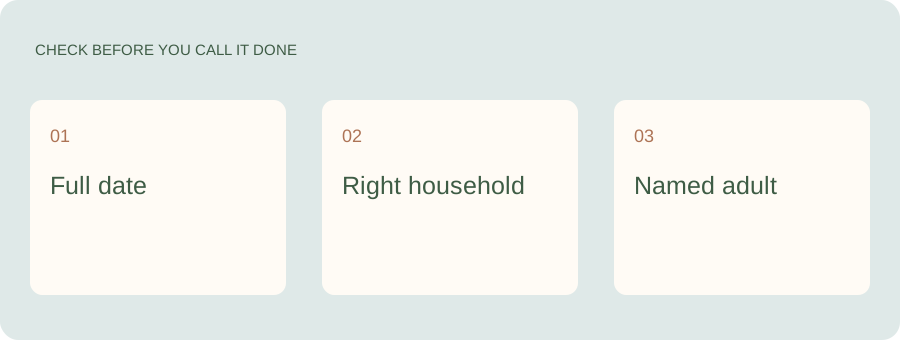
A few common questions
Can I import a PDF directly into Google Calendar?
Use Google Calendar’s documented supported import formats. A PDF must first be read and converted into event information; uploading a document is not the same as subscribing to a calendar.
Will an imported event update when the school changes it?
A one-time imported copy does not automatically follow edits to the original PDF. A calendar subscription may receive feed updates. Check which method you are using.
Should I import every date from a school newsletter?
Only the dates relevant to your household, plus preparation deadlines you need. Check class-specific entries and repeated reminders before adding them.