Take a readable picture of the whole notice, identify the dates and event details, then check the result before relying on it. Keep preparation jobs, such as returning a form, separate from the event itself.
Take the photo that contains the answer
Include the full notice, especially the heading, date, location and any notes at the bottom. Avoid cutting off the year or the line that says which class the event applies to. If the paper is long, use a couple of clear images rather than one distant photograph.
For a screenshot, include enough context to distinguish an invitation from a reminder or a cancellation. A message that says “same time as last week” needs the earlier details too.
Separate the event from the jobs around it
Here is a fictional school notice and the plan it should produce.
| Notice detail | Where it belongs |
|---|---|
| Class picnic, 8 October, 12–2 pm, school field | Calendar event with full date, time and place |
| Return the permission slip by 5 October | Preparation task with an owner and deadline |
| Bring a packed lunch and a hat | Event note or preparation list |
| Parent volunteers arrive at 11:30 | A separate time only for the adult volunteering |
Start the conversation with the outcome you want
You could send Kaia the image with: “Help me add the picnic to our calendar and list what we need to do beforehand.” If the notice includes several children or groups, say which details apply to your family. You should not have to write a perfect prompt, but that context avoids unnecessary guessing.
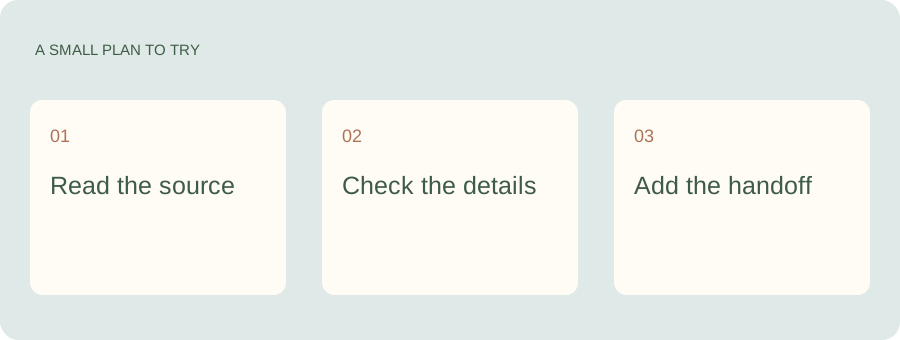
Send Kaia the school flyer.
The photo is already on your phone. Send it to Kaia for help pulling the event into your family plan, then check the details and tell her who is handling pickup. You can deal with the notice while it is in front of you.
Check the details that are easiest to misread
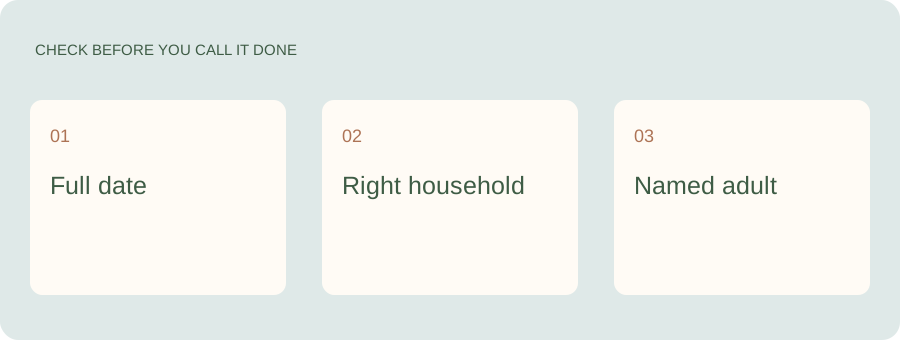
Read back the date, year, start and end time, place and relevant child or group. Check whether the notice is using day/month or month/day order. If a deadline is given only as “Friday,” establish the actual date.
When a detail is missing, ask or look it up before treating the event as settled. An image can contain a date without containing enough information to know which occurrence the school means.
Add the person, not just the appointment
A calendar entry can show the picnic and still leave nobody owning the lunch or pickup. Name the adult responsible for each preparation task. A date and a task are related, but they are not the same job.
Keep the original until the event is over
Save the notice somewhere you can find it if the school changes the plan. When an update arrives, change the existing event and tell the relevant person. A second event labeled “updated” can leave two believable versions of the same afternoon.
See a worked family example
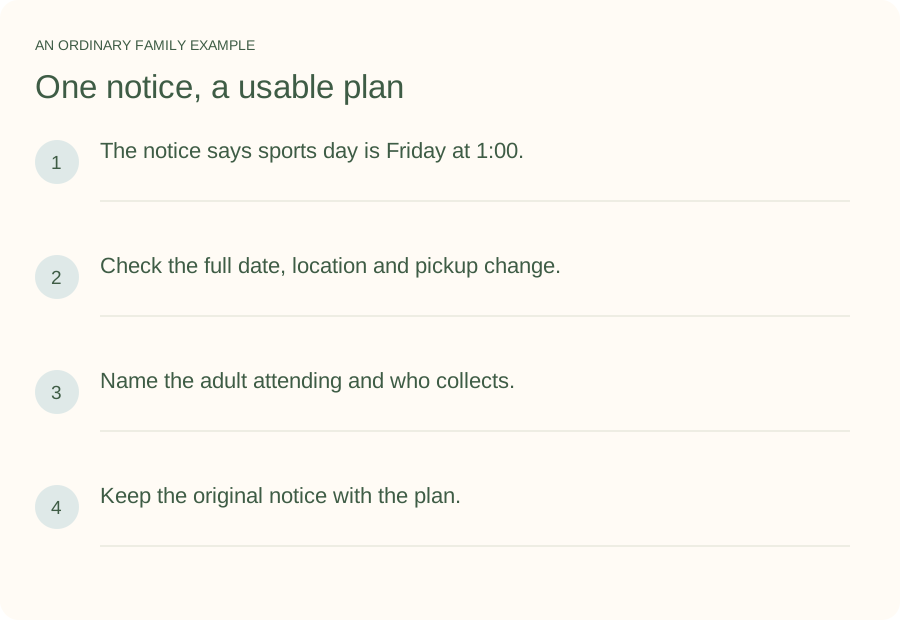
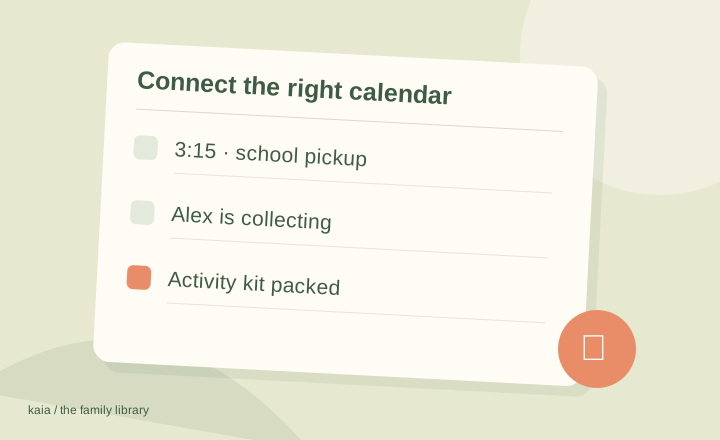
Illustrative household example; adapt the names and details to your week.
A few common questions
Can I use a screenshot instead of a photograph?
Yes, as an input for identifying the information. Include the whole message and enough context to understand the date and any change. Check the extracted details before relying on them.
What if the photo contains several events?
Treat each event separately, then check that none were duplicated or skipped. Keep deadlines and preparation tasks distinct from event attendance.
What should I do when the school changes the time?
Update the existing event and confirm the transport or preparation owner has seen the change. Keep the cancellation or revised notice with the event if it will be useful.